Step 1
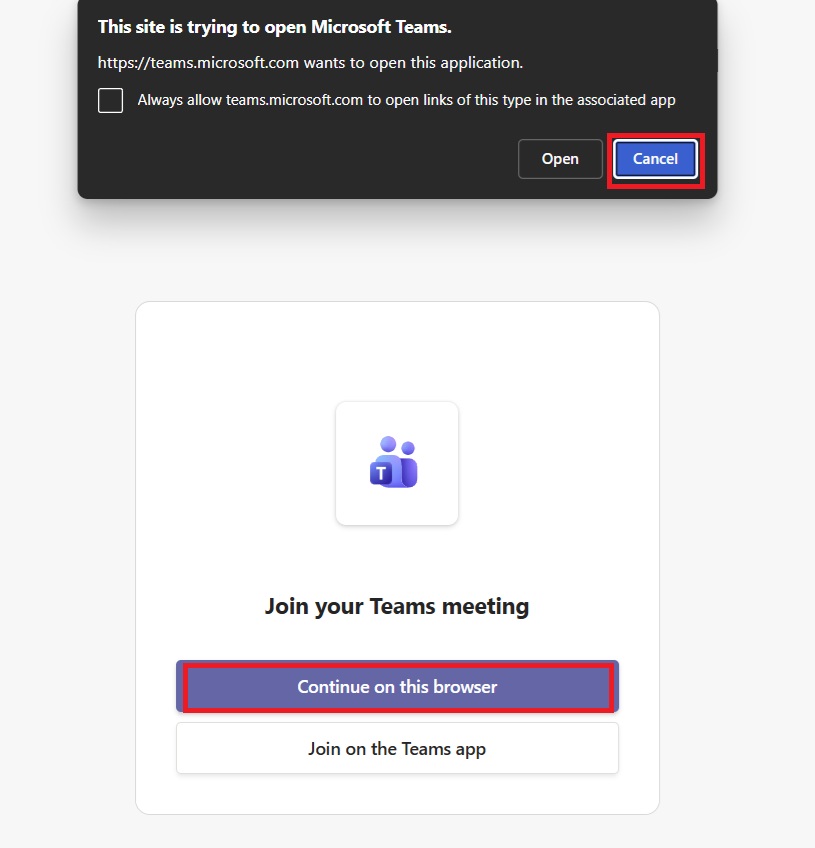
- Press on the link that we sent you to join the Teams meeting room.
- You can choose one of the two options for joining a Teams meeting:
- Continue on this browser - The remaining steps show how to sign up using an InPrivate/Incognito window in a browser.
- Join on the Teams app - If you choose "Join on the Teams app"you must log out of your personal/work Teams account.
Step 2
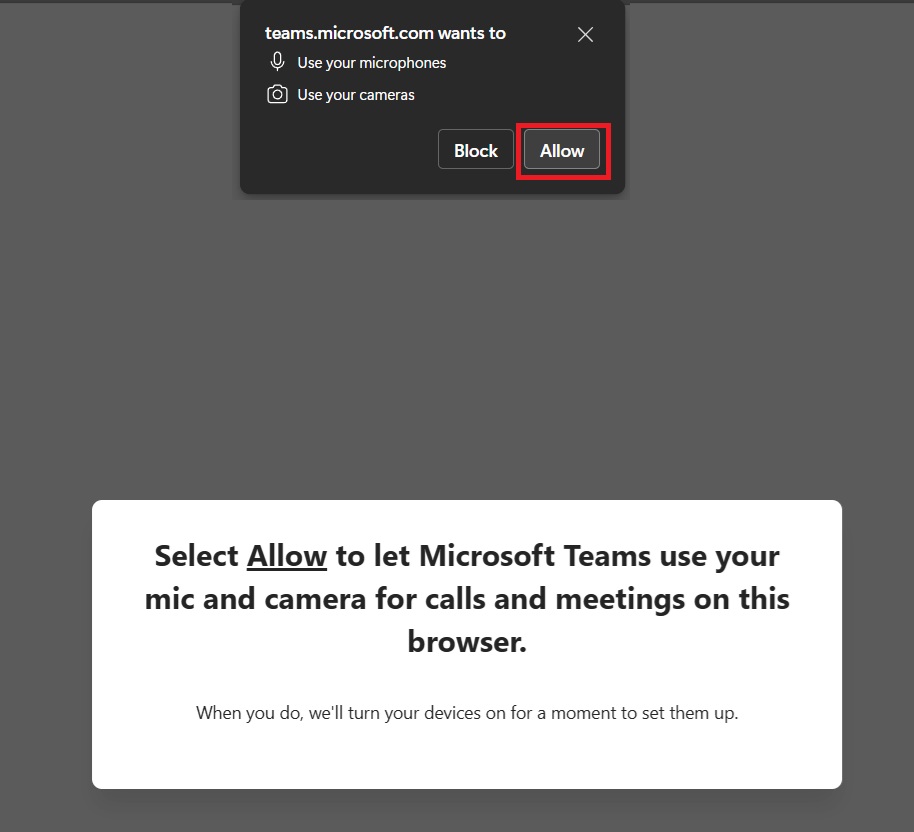
Allow to use mic and camera
Step 3
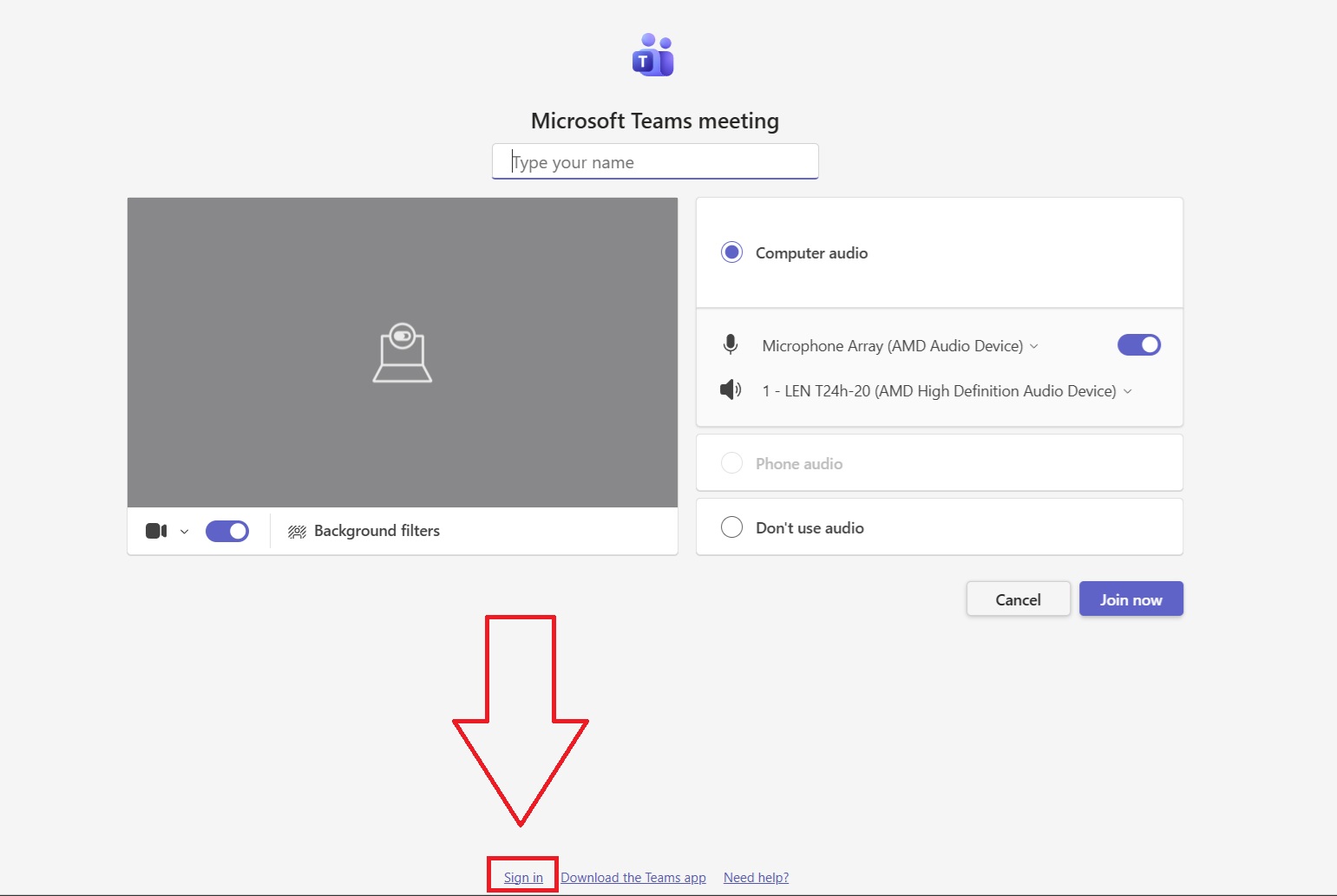
Press "Sign in".
Step 4
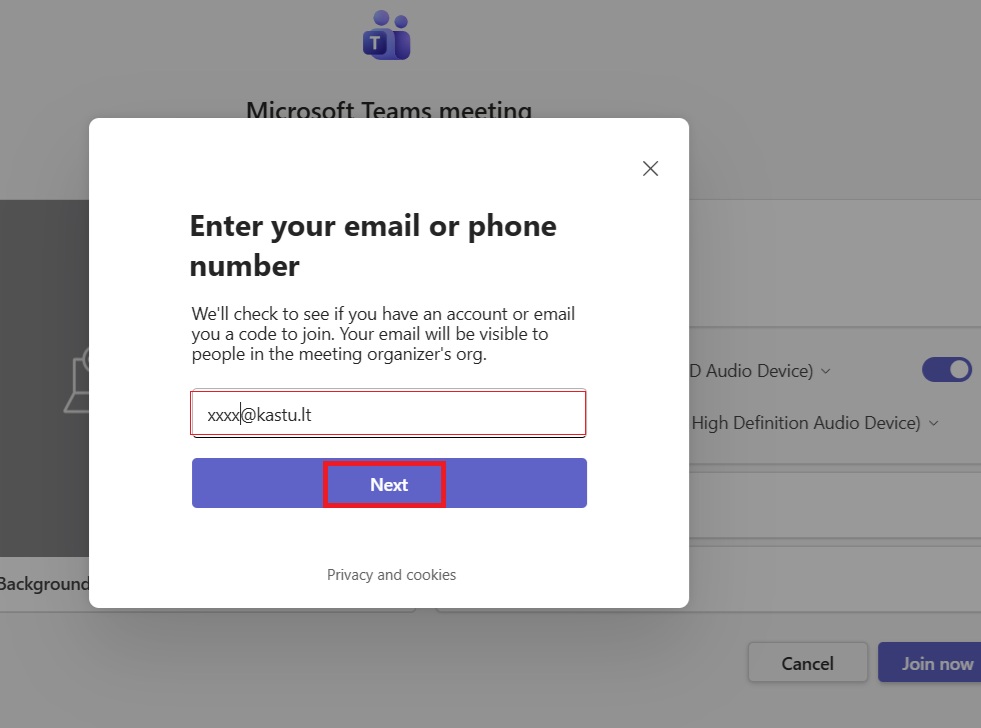
Now enter Kastu email address. You should use the e-mail address provided by us.
Step 5
Enter the password provided by us.

Step 6
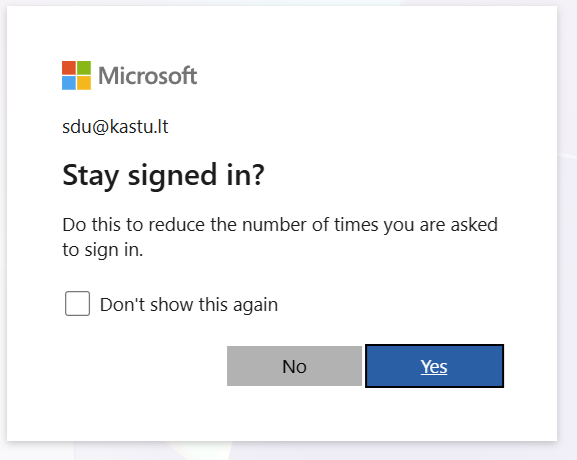
You can press "Yes" or "No". There is no difference in what you choose.

Step 7
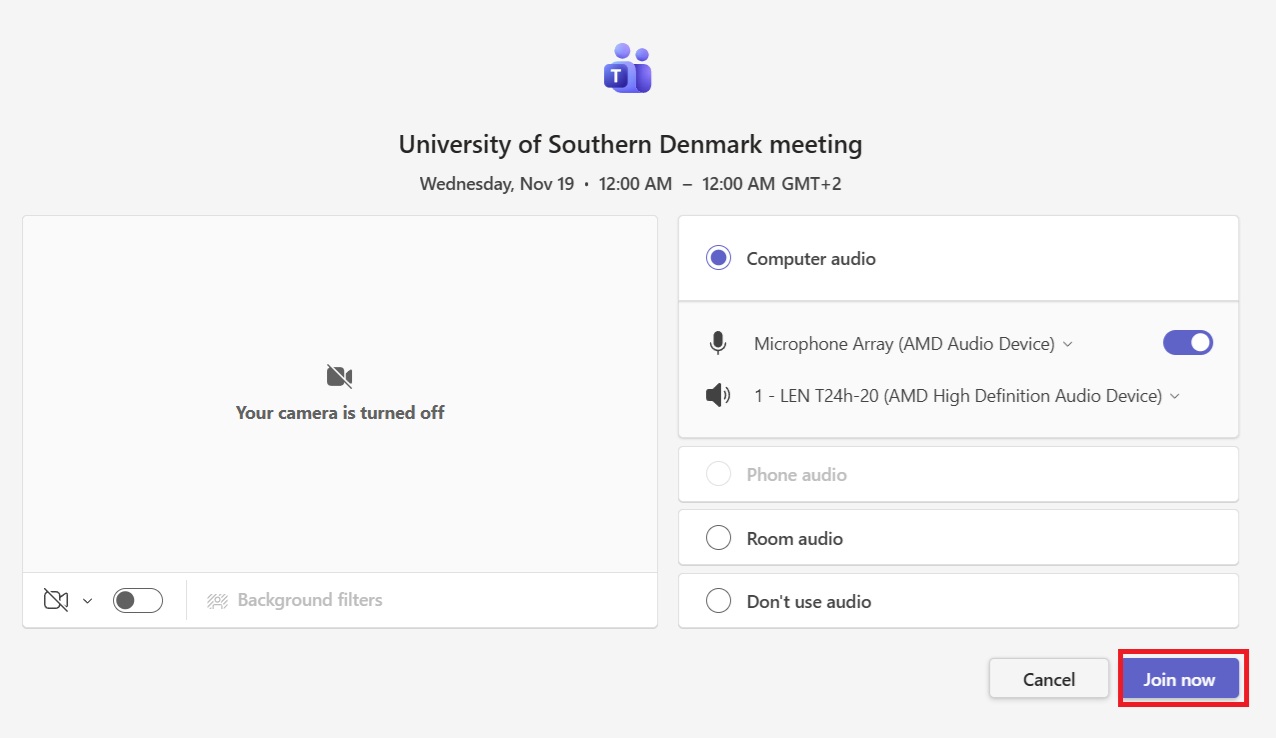
You should see the window with your university name, like the one below. Press "Join now" and that's it, you are now the host of the meeting.
Step 8
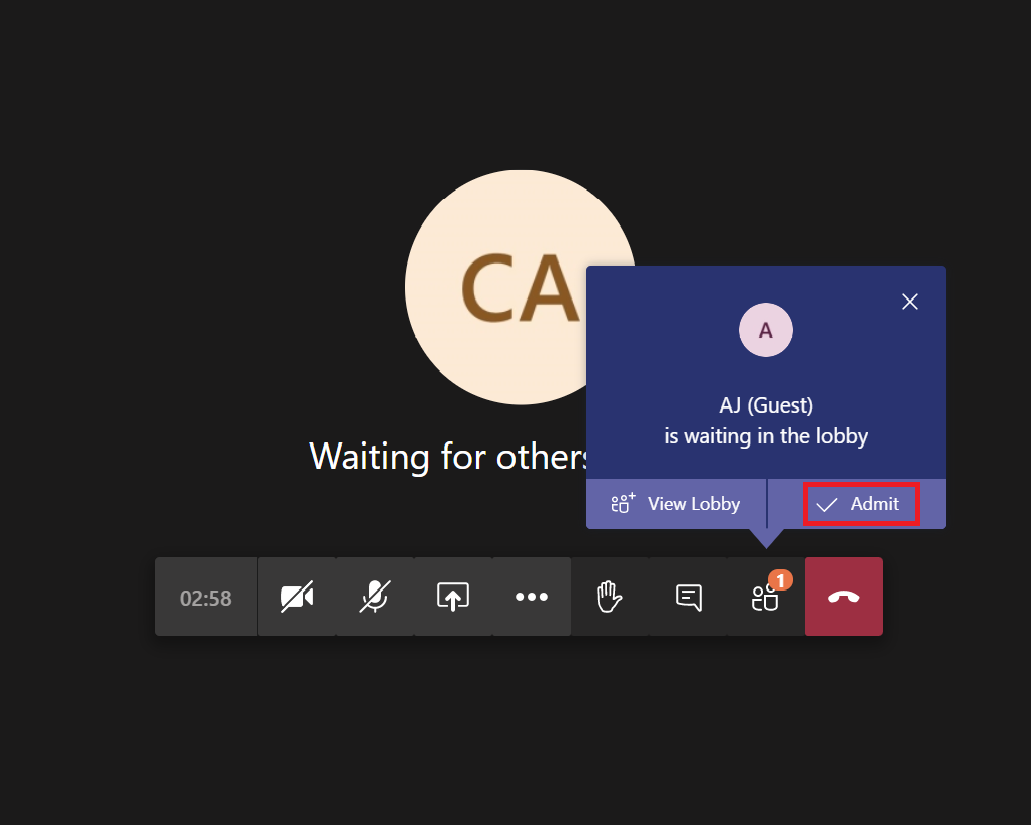
Whenever a student tries to enter the meeting, you will get a notification like the one shown below. When you press „Admit" the student will be admitted to the meeting.